Connect Your Mac to the Wired Network
In addition to Wi-Fi, Marquette University has a wired campus network accessible with an Ethernet cable and network wall jack. Follow these steps to connect your Mac to the wired network.
Check for Ethernet on Your Mac
Before connecting, make sure your Mac has an Ethernet port. The port resembles a larger landline telephone jack and may look like this.
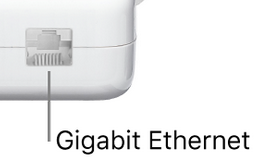
If you don't have an Ethernet port, you need an USB-C Ethernet adapter to plug the network cable into your Mac. We recommend brands such as Anker, Belkin, and StarTech
If the Building Doesn't Require Signing in like a Dorm Room:
Connect to the Wired Network
- Plug one end of your Ethernet cable into the Mac's Ethernet port or Ethernet adapter.
- Plug the other end into the network jack on the wall.
- Go to Apple Menu > System Settings > Network.
- Under "Network," look for your Ethernet adapter and ensure there is a green dot next to it. It may take a moment for it to appear or change from yellow.
- Close System Settings.
- Launch a web browser and confirm you have network access.
If your Dorm has a Cisco wall box like shown below, follow steps to connect:

1. Look under the Cisco wall box and locate the ethernet ports

2. Connect your ethernet cable to ports LAN2 or LAN3 as indicated above
3. Ensure your device has an internet connection
If the Building Requires Signing in like an Academic Building:
Connect to the Wired Network
Note: Marquette-managed faculty and staff Macs were automatically updated with settings to access the network.
- Plug one end of your Ethernet cable into the Mac's Ethernet port or Ethernet adapter.
- Plug the other end into the network jack on the wall.
- If prompted, sign in with your Marquette username — not your email address — and password.
- Under "Network," look for your Ethernet adapter and ensure there's a green dot next to it. It may take a moment for it to appear or change from yellow.
- If you still aren't connected go to to Apple Menu > System Settings > Network > Ethernet > Details > 802.1X > Connect and sign in using your Marquette credentials
- Close System Settings.
- Launch a web browser and confirm you have network access.
- If your Mac cannot connect, report an issue with the ITS TechSquad for further assistance.
Students, faculty, and staff with personally owned devices should use MU Secure Wi-Fi. Guests can use MU Guest Wi-Fi.